Unlock the Hidden Trick to Effortlessly Duplicate and Edit WordPress Blocks Like a Pro
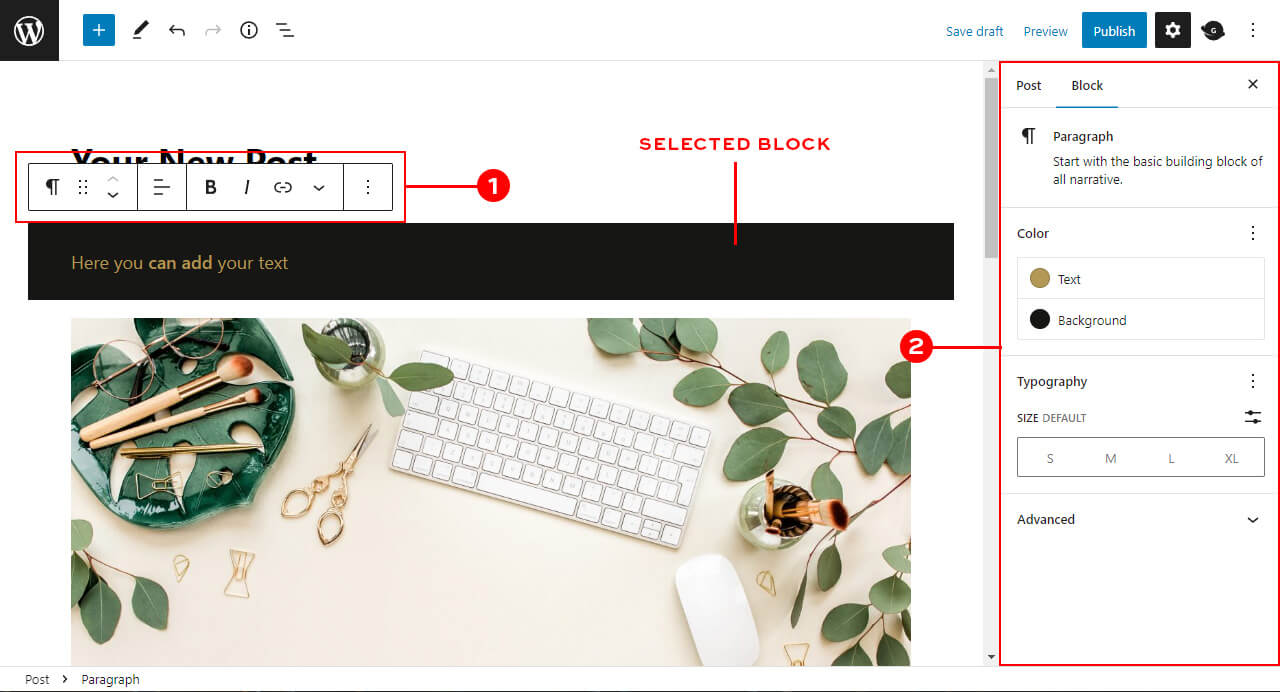
Immediately after selection, you will see a small option panel above the block (#1) and a larger, more advanced don’t on the right (#2). All customizable options for the selected block will be in one of those two panels.
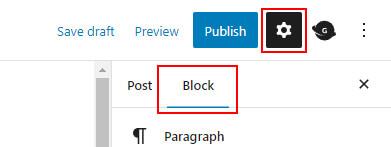
If you don’t see the panel on the right, make sure it is turned on! The cogwheel icon in the top right corner must be selected. It is also worth checking if the right panel is switched to block view instead of post view.
The common elements for all block types are an icon at the left of the panel above the block (#1), which shows the selected block type and movement icons. Those are represented by six dots and the top/bottom arrow.
This website uses cookies to improve your experience. We'll assume you're ok with this, but you can opt-out if you wish. Cookie settingsACCEPT
Privacy & Cookies Policy
Privacy Overview
This website uses cookies to improve your experience while you navigate through the website. Out of these cookies, the cookies that are categorized as necessary are stored on your browser as they are as essential for the working of basic functionalities of the website. We also use third-party cookies that help us analyze and understand how you use this website. These cookies will be stored in your browser only with your consent. You also have the option to opt-out of these cookies. But opting out of some of these cookies may have an effect on your browsing experience.
Necessary cookies are absolutely essential for the website to function properly. This category only includes cookies that ensures basic functionalities and security features of the website. These cookies do not store any personal information.










Post Comment