Discover How OpenStation Transforms Your Entire WordPress Site into a Single, Game-Changing Tab!
— Daniel López (@Fronfreke) September 24, 2026
The phone layout is still experimental, so we’d love to hear in the comments or our OpenStation support forum how it works for you.
Why the new name?
Desktop mode is best known as a setting in mobile browsers, so searching for it mostly turned up browser help pages.
The plugin had also grown past the idea of a mode you switch on. It’s closer to a workstation for your WordPress site, and it’s open source, so we called it OpenStation.
If you already use Desktop Mode, you don’t have to do anything. It’s the same plugin; it keeps updating as usual, and your windows and settings are still there.
Your site stays the same
OpenStation changes how WP Admin looks only for the people who turn it on. Visitors see your site as they always have. If you deactivate the plugin, WP Admin goes back to the way it was.
OpenStation is open source. You can read the code on GitHub, and the team writes about what they’re building on the OpenStation blog.
Try OpenStation
On WordPress.com, you can install OpenStation on any paid plan.
- From your site’s dashboard, go to “Plugins“, search for “OpenStation,” and click the “Install and activate” button.
- Click the “Switch to OpenStation” link at the top right of the admin bar.

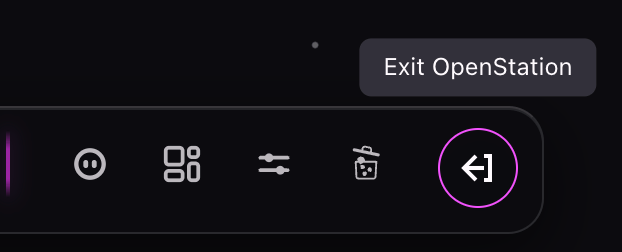
- To go back to the classic WP Admin, click the “Exit OpenStation” icon at the end of the dock.

Want to try it before installing anything? This live preview runs OpenStation in your browser, with nothing to install.
If something doesn’t work the way you expect, tell us in the OpenStation support forum or open an issue on GitHub.
Now you can go ahead and close a few tabs.







Post Comment