Unlock Hidden Writing Powers with These Surprisingly Free Transcription Tools!
Ever found yourself scrabbling through a 50-minute interview, only to realize the golden line you need is lost somewhere around minute 37? Or maybe you rambled through half a chapter on a leisurely stroll, and now that precious monologue is idling on your phone instead of starring in your manuscript. The words? They’re there, alive and kicking… just not quite where you want them. Enter the realm of transcription tools—those nifty assistants that promise to corral your spoken gems into written gold. But beware: “free” isn’t a universal language here. One service offers a monthly minute bucket, another slaps a 30-minute limit per file, and yet another simply accelerates your typing without transcribing a thing. So, how do you pick the right sidekick in this alphabet soup of options? Let’s dive into six free transcription tools that could transform your workflow—each one with its quirks, strengths, and the inevitable catches you ought to eyeball before leaping in. Ready to make your voice heard on the page?
LEARN MORE
You finish a 50-minute interview for a feature, and the line you need is somewhere around minute 37. Or you talked through half a chapter on a walk, and now it lives in your phone instead of your manuscript. Either way, the words exist. They just aren’t on the page yet.
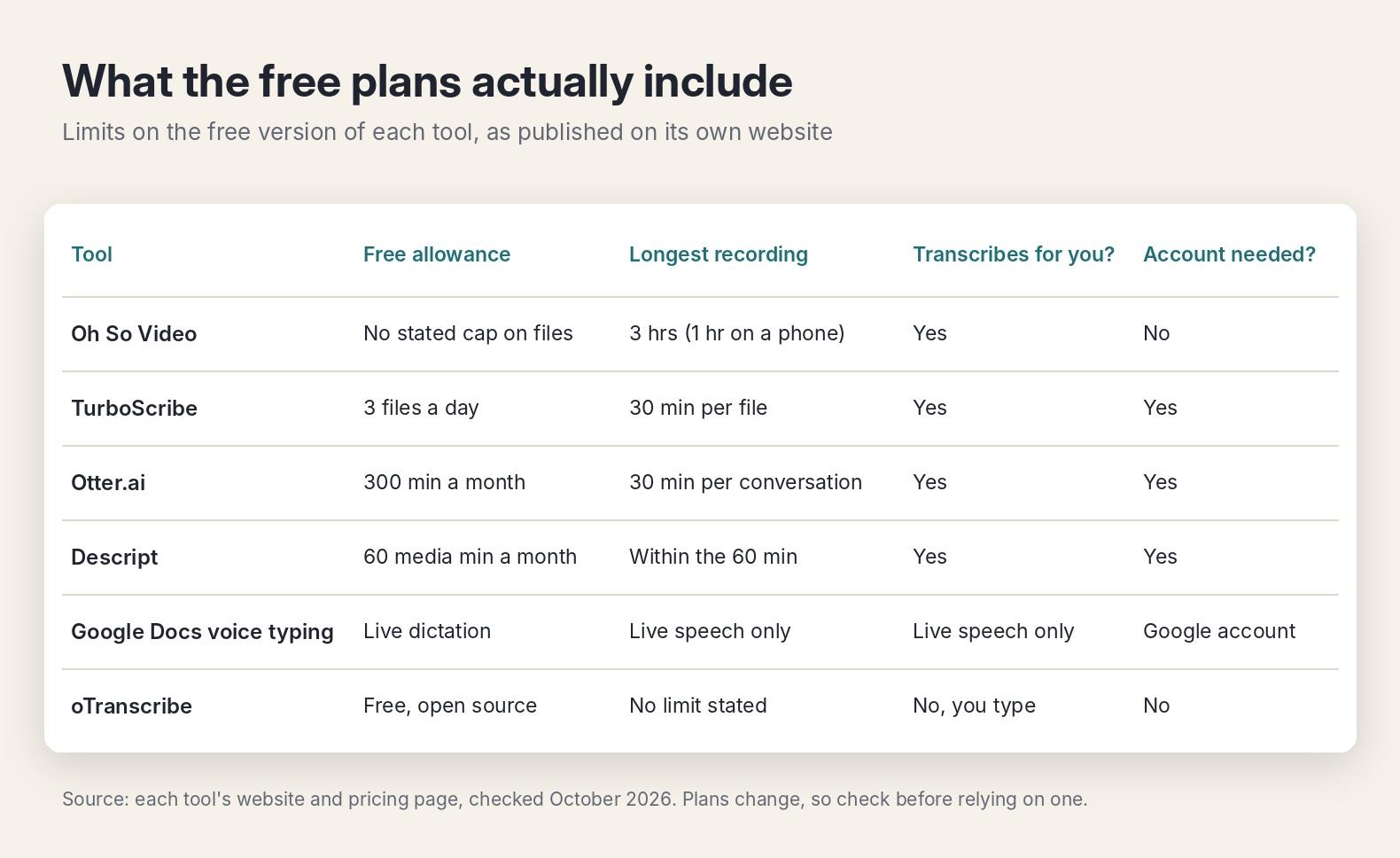
Transcription tools promise to fix that, and plenty of them say they’re free. The trouble is that “free” means something different at almost every company. One gives you a monthly pool of minutes, another caps each file at half an hour, and a third won’t transcribe anything at all; it just helps you type faster.
So here are six free options worth knowing about, in no particular order. For each one you’ll find what the free version actually lets you do, who it suits, and the catch to check before you rely on it.
What “free” usually means in transcription
Before comparing tools, it helps to know which limits to look for. Most free plans restrict at least one of these:
- Monthly minutes. A shared allowance that resets each month.
- Length per file. A cap on how long a single recording can be, often 30 minutes or less.
- Number of files. A daily limit, or a small lifetime allowance for recorded files.
- Exports. Some plans let you read a transcript but limit how you save it.
- Live versus recorded. Dictation tools only work while you speak; they won’t touch an existing recording.
- Where the audio goes. Most services process your file on their servers. A few keep it on your own device.

Oh So Video
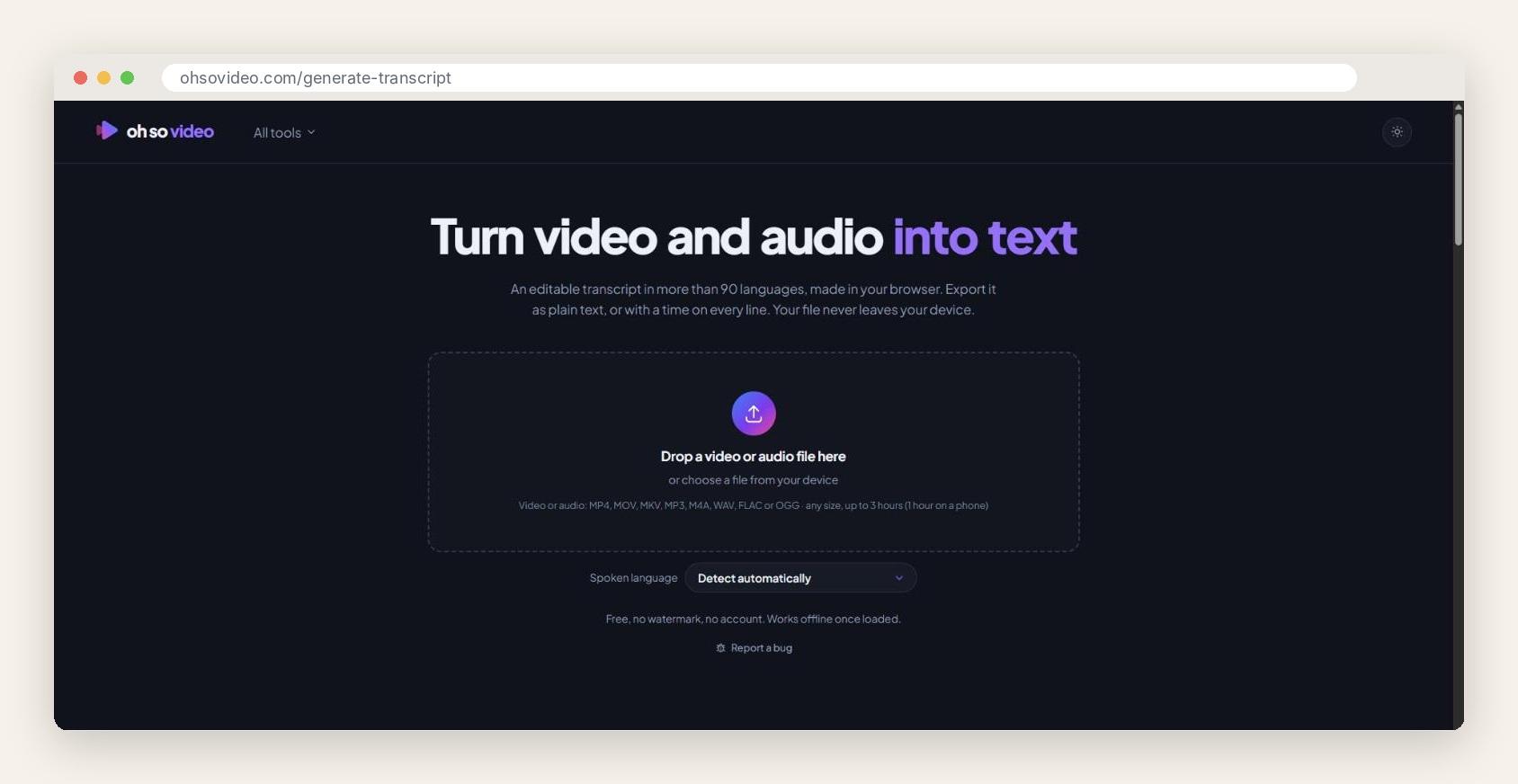
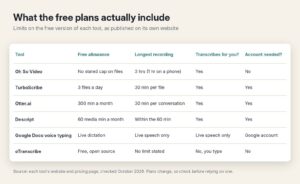
Oh So Video’s transcript generator runs OpenAI’s Whisper speech model inside your browser. You open a video or audio file, and it’s processed on your own computer or phone. The file never leaves your device, there’s no account to create, and the site says there’s no limit on how many files you can transcribe. Once the page has loaded, it even works offline.
That privacy point matters more for writers than it might seem. If you’ve interviewed a source, a client or a relative, you may not want that recording sitting on someone else’s server. You can correct any line while transcription is still running, and the tool flags words it’s unsure about, so you know where to listen again. When you’re done, you export plain text or text with a start time on each line, which makes it easy to find a quote later. It supports more than 90 languages.
Best for: interviews and personal recordings you’d rather keep on your own machine.
Worth asking about: recordings can run up to 3 hours on a computer and 1 hour on a phone. Chinese, Japanese, Thai, Lao, Burmese, Khmer and Tibetan aren’t supported yet.
TurboScribe
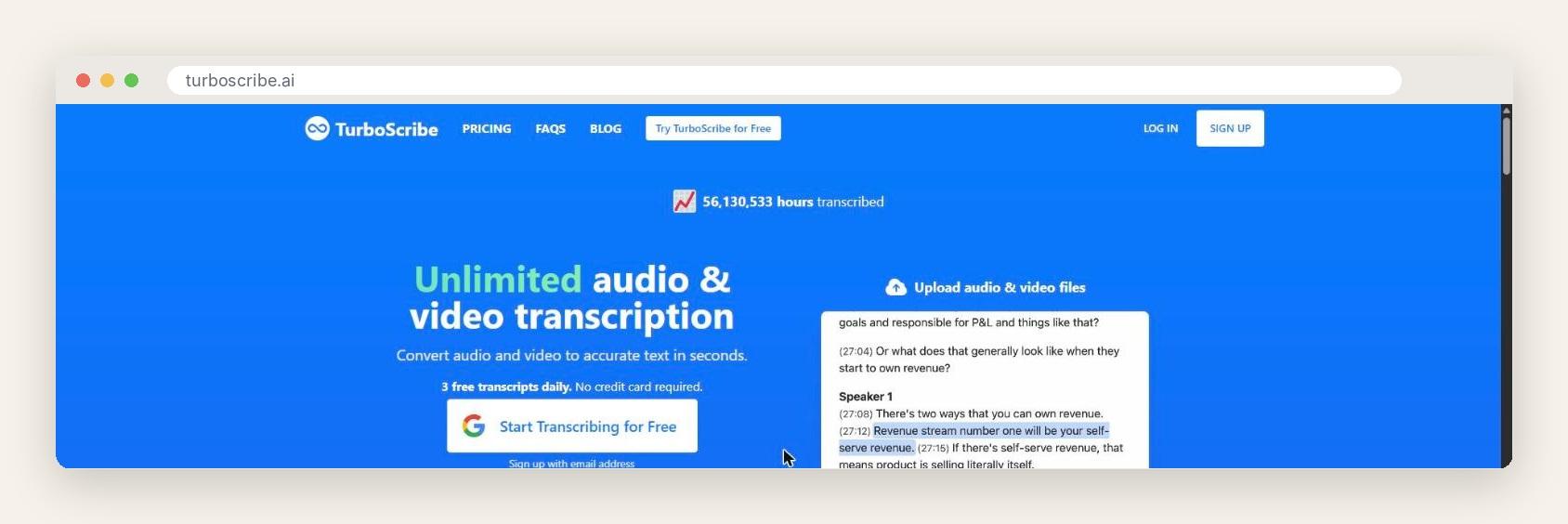
TurboScribe is a straightforward web service: you add an audio or video file and get a transcript back. The free plan covers three files a day, each up to 30 minutes long, added one at a time. The company says it handles speech in more than 98 languages.
For a writer who records a few short interviews or voice memos a week, three files a day is plenty. If you outgrow it, the paid Unlimited plan is listed at $10 a month when billed yearly ($120 a year), with exports such as DOCX, PDF, TXT and subtitle files.
Best for: short interviews and voice memos a few times a week.
Worth asking about: anything over 30 minutes has to be split before the free plan will take it, and the pricing page lists its export formats under the paid plan, so check what the free tier lets you save before you build a routine around it.
Otter.ai
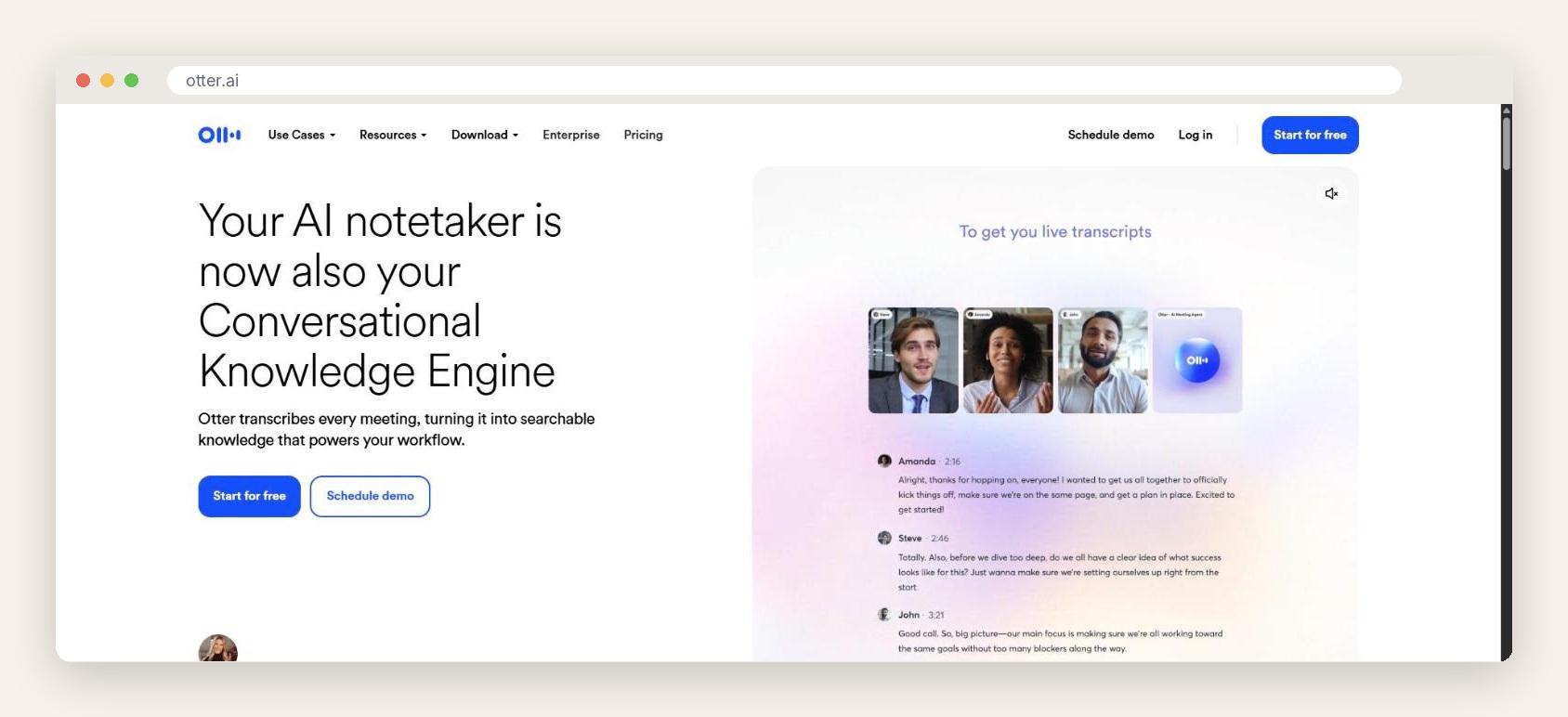
Otter is built around live conversations. You can invite its meeting agent to Zoom, Google Meet or Microsoft Teams calls and get a transcript in real time, which suits writers who interview people over video. The free Basic plan gives you 300 minutes a month, with each conversation capped at 30 minutes.
Where it’s less generous is with recordings you already have. The free plan allows just three imported audio or video files in total, not per month. So it works best as something you switch on before an interview starts, not as a home for your backlog of old recordings.
Best for: live interviews over video calls.
Worth asking about: a 30-minute limit per conversation will cut off longer interviews, and three lifetime file imports go quickly.
Descript
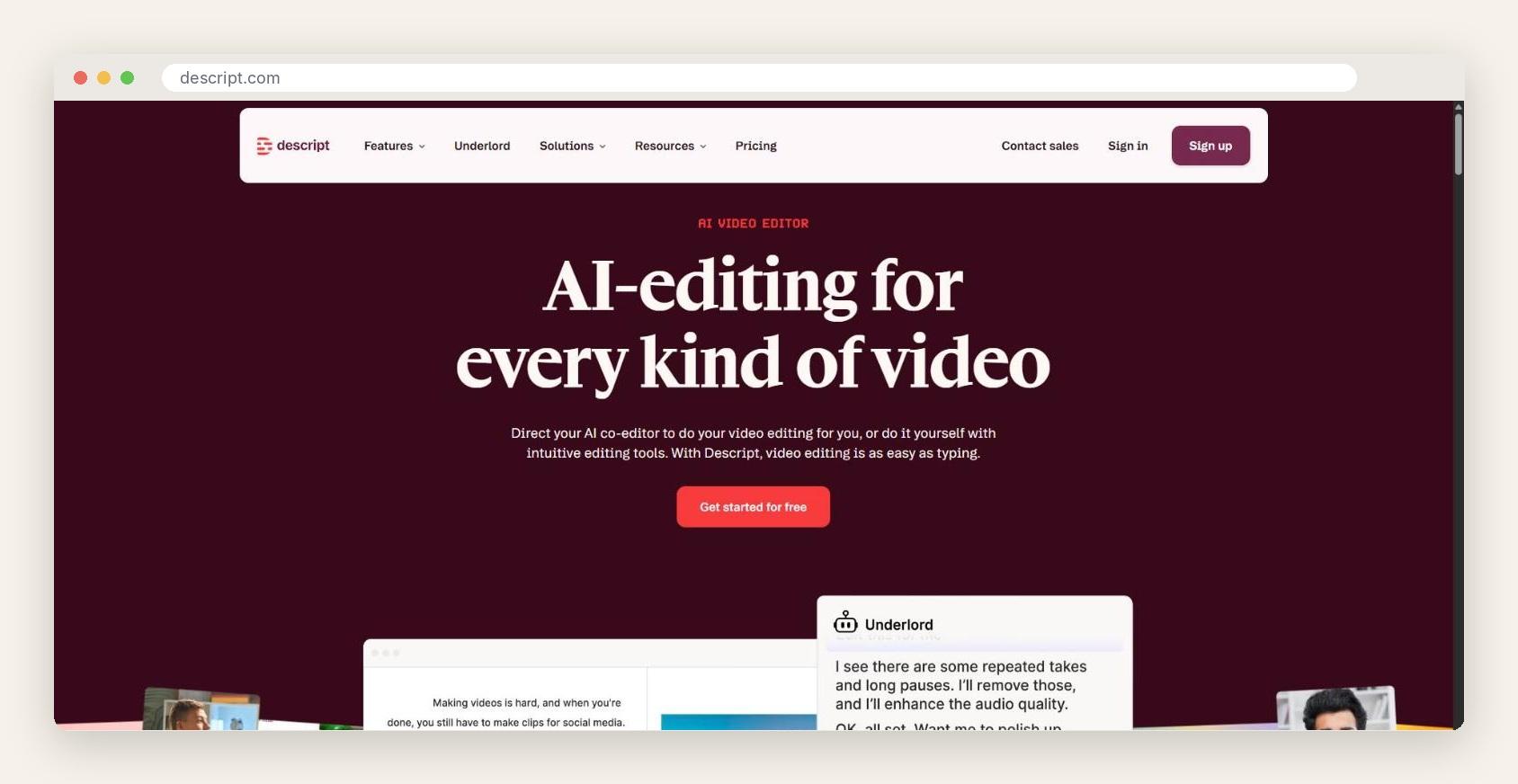
Descript treats the transcript as the editing surface. Delete a sentence from the text and it’s gone from the audio too. That makes it handy for writers who also produce podcasts, audio essays or short videos. The free plan includes 60 media minutes a month, transcription in 25 languages, and 5GB of cloud storage.
If all you need is text, Descript is more than you require. But if the recording is going to become something people listen to, editing by text is a real time saver.
Best for: writers who turn interviews into podcast episodes or audio pieces.
Worth asking about: an hour a month disappears fast, and video exported on the free plan isn’t watermark free.
Google Docs voice typing
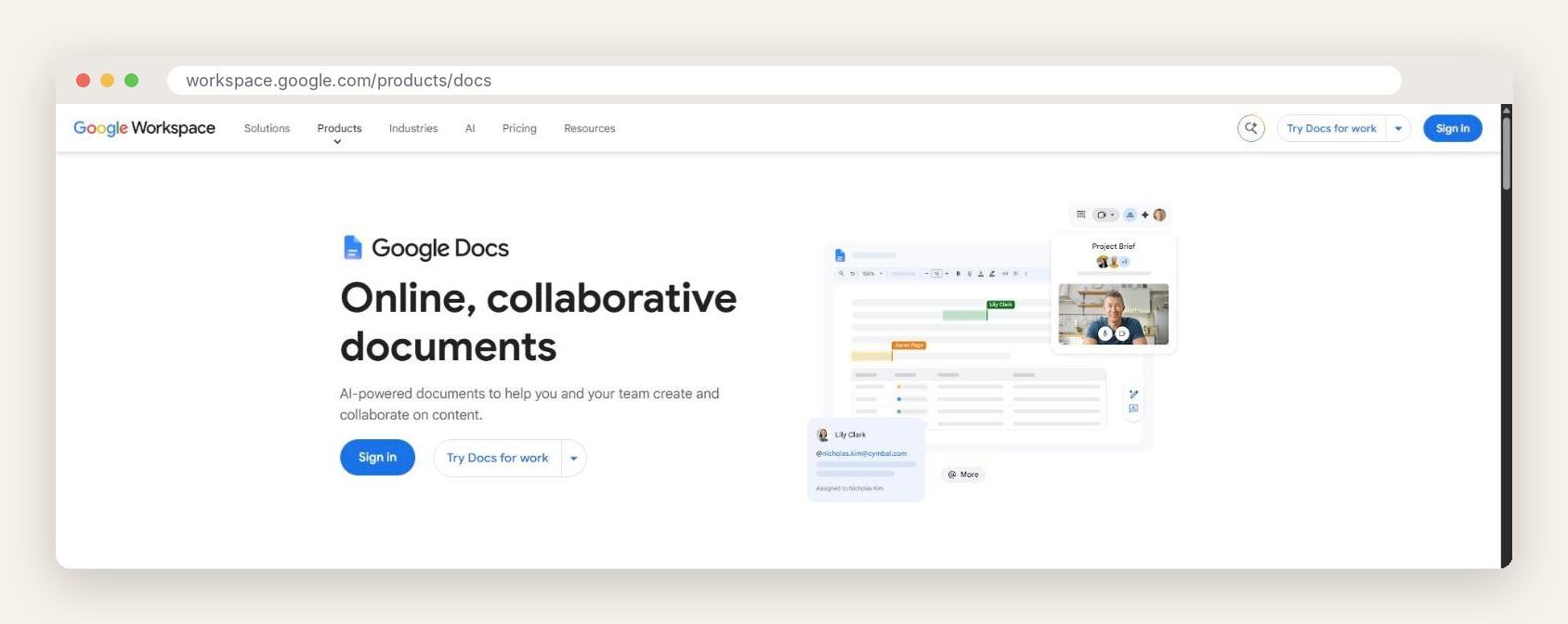
If your problem is getting a first draft out of your head, rather than transcribing an existing recording, voice typing in Google Docs may be all you need. Open a document, choose Tools, then Voice typing, click the microphone and start talking. The text appears as you speak.
It works in the latest versions of Chrome, Edge and Safari, and English speakers can use spoken commands for basic formatting and editing. Some writers find that talking through a scene or an argument loosens things up in a way typing doesn’t.
Best for: dictating drafts and notes straight into a document.
Worth asking about: it only listens to live speech through your microphone and can’t transcribe a recording. On work accounts, an administrator may have switched it off.
oTranscribe
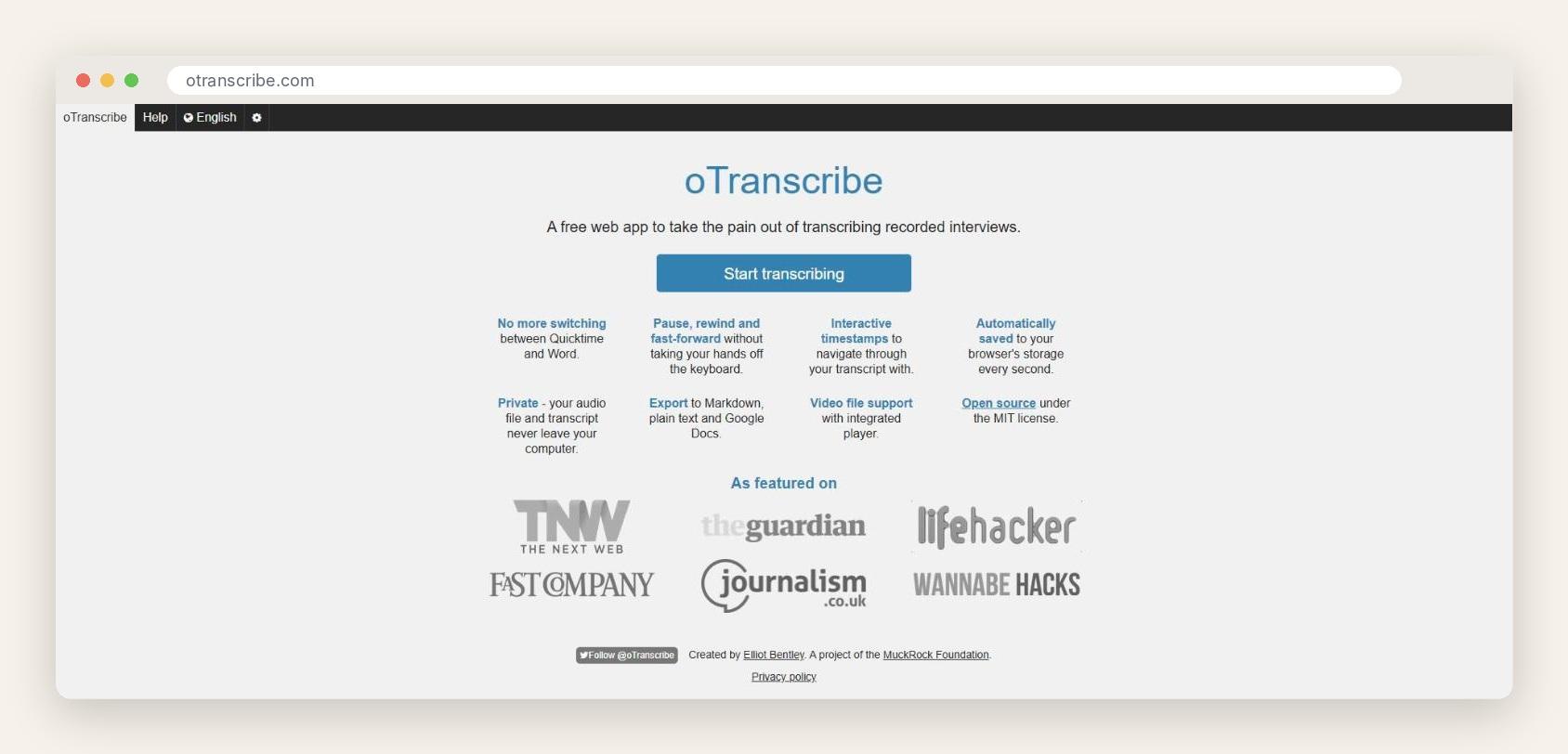
oTranscribe doesn’t transcribe anything for you, and that’s the point. It’s a free, open source web app that puts your audio player and your text in one window, with keyboard shortcuts to pause, rewind and speed up without lifting your hands. Press a key combination and it drops the current timestamp into your text.
Your audio file and transcript stay on your computer, your work is saved to the browser every second, and you can export to Markdown, plain text or Google Drive. Writers who need an exact, word-for-word record, or who want to check an automatic transcript against the audio, will find it surprisingly pleasant to use.
Best for: precise manual transcription and checking AI transcripts.
Worth asking about: you do all the typing yourself, and it only works on desktop computers.
Which tool fits which job
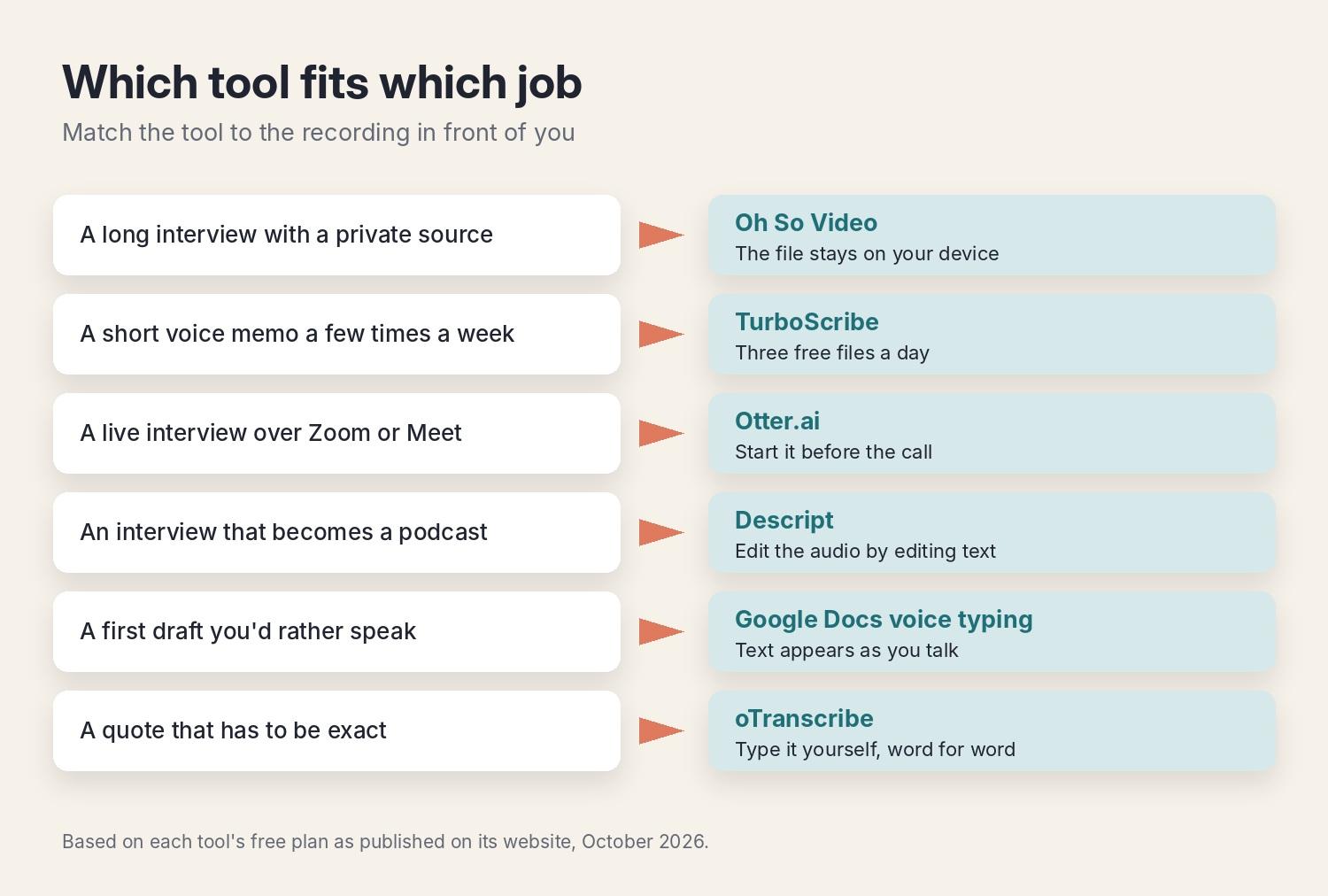
Most writers don’t need one tool for everything. They need the right one for the recording in front of them:
- A long interview with a private source: Oh So Video, since the file stays on your device.
- A short voice memo a few times a week: TurboScribe’s three free files a day.
- A live interview over Zoom or Meet: Otter, started before the call begins.
- An interview that will become a podcast episode: Descript, so you can edit the audio by editing the text.
- A first draft you’d rather speak than type: Google Docs voice typing.
- A quote you have to get exactly right: oTranscribe, alongside any of the others.
A note on quotes: automatic transcripts are very good, but they still mishear names, numbers, jargon and anyone talking over someone else. Before a direct quote goes into print, play that part of the recording again and check it word for word. And if you already pay for Microsoft 365, Word has its own Transcribe feature that handles up to 300 minutes of recorded audio a month and labels each speaker. It isn’t free, but it may already be in a subscription you have.
Five questions to ask before you commit
- How long are my recordings, usually? A 30-minute cap per file is fine for voice memos and painful for long interviews.
- How many hours do I record in a month? Add it up honestly before you trust a monthly allowance.
- Did the person I recorded expect their voice to be stored online? If not, a tool that keeps the file on your device is the safer choice.
- What do I need at the end? Plain text for a draft, timestamps for finding quotes, or a Word file for an editor.
- Which languages and accents will I be working with? Check the tool’s language list before an important interview, not after.
Where to start
If you’re not sure, start with whatever matches the recording you have right now. Run one real interview through a tool, then compare the transcript with the audio for five minutes. You’ll learn more from that than from any feature list, including this one.
It’s also worth keeping two tools on hand: one that does the heavy lifting automatically, and one, like oTranscribe, for the lines that have to be perfect. Between them, the hours you used to spend typing can go back into the writing.
Free plans change often. The limits above come from each tool’s own website and pricing pages as of October 2026, so check the current terms before you rely on one for a deadline.







Post Comment