Unlock the Secret Power of Font Glyphs to Transform Your Text Like Never Before!
Ever stumbled upon that dreamy calligraphy font, all set to add swooping tails and elegant swashes to your text—only to end up with something that looks as flat as yesterday’s soda? Yeah, I’ve been there too, scratching my head wondering if the font was broken. Spoiler alert: it’s not broken at all! The real magic hides in those sneaky little details called glyphs and alternate characters—stylistic treasures tucked away from your usual keyboard shortcuts. If you’ve ever wished your typography could be as flashy and charming as a pro’s but felt stuck in plain-Jane mode, this guide is your new best friend. I’ll walk you through unlocking those hidden font gems in Adobe Photoshop, so your text doesn’t just speak—it waltzes. Ready to level up your design game? Dive in—you’ll never look at fonts the same way again. LEARN MORE
Have you ever downloaded a gorgeous calligraphy font expecting swooping tails and elegant swashes, only to type a sentence and end up with something surprisingly plain?
You didn’t get a “broken” font. The secret lies in glyphs and alternate characters – hidden stylistic variations built into the font that don’t appear on standard keyboard keys. Here is a quick guide on how font glyphs work and how to access them in design software like Adobe Photoshop to make your typography stand out.
What You Will Need:
Step-by-Step: How to Access & Insert Font Glyphs in Photoshop
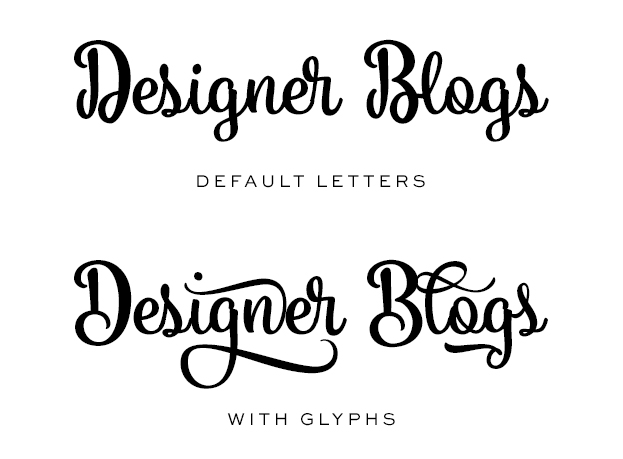
In this post, I will be using a font called Vanilla Daisy. Below you can see how the words ‘Designer Blogs’ looks written out using this font and an example of using some of the glyphs included with it.
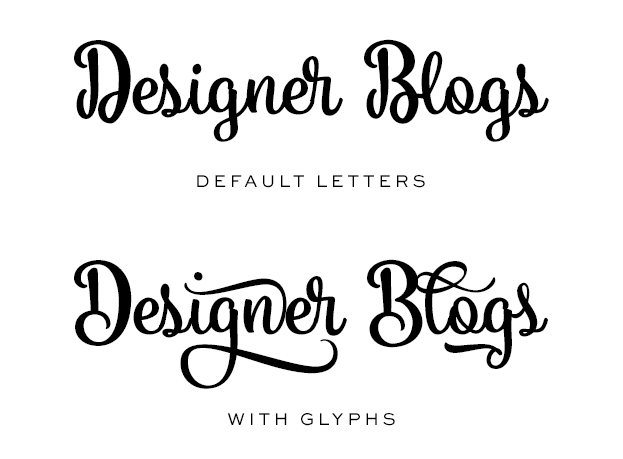
Isn’t it cool? Now let’s learn how to use glyphs and making any text fancier.
#1 Set Up Your Text Layer
Open your design file or create a blank canvas. Select the Type Tool (T), pick your script font, and type your desired text. At this stage, your lettering will display default characters.
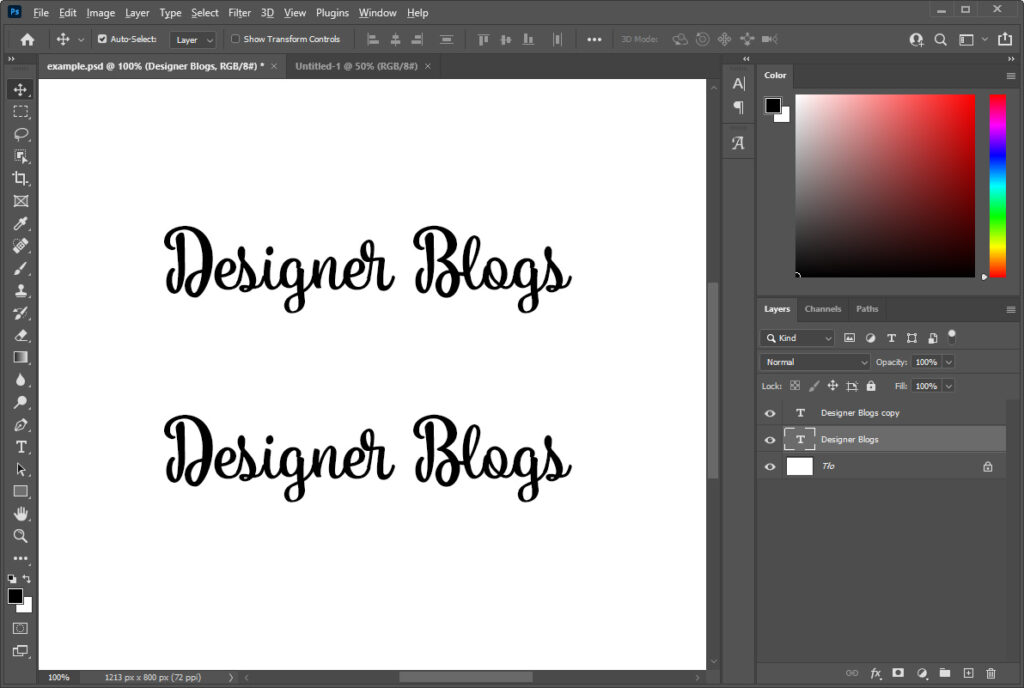
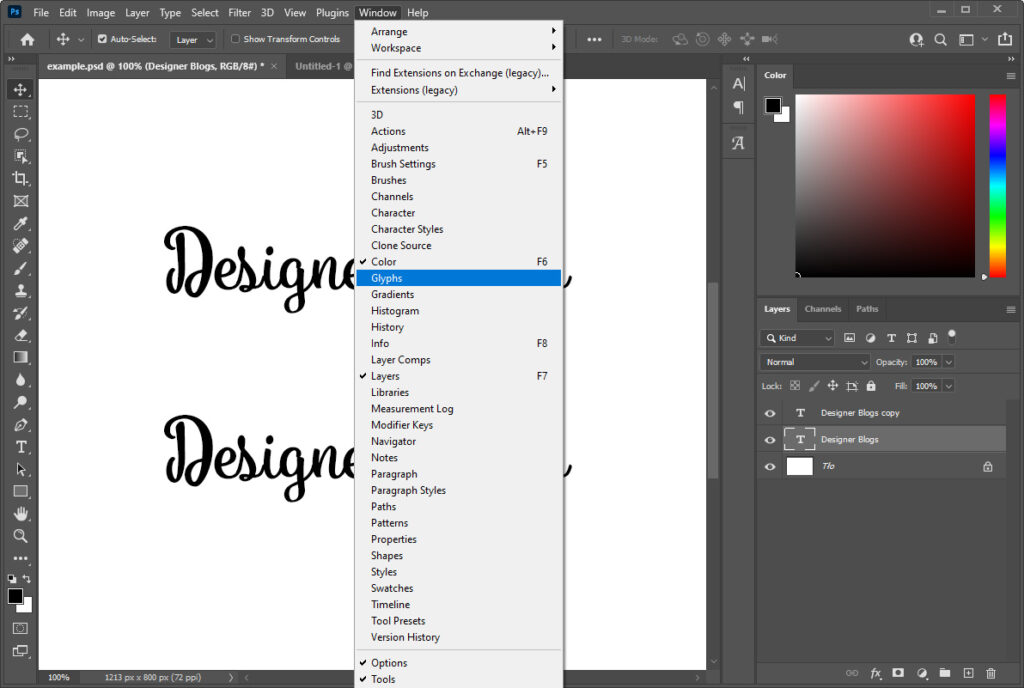
#2 Open the Glyphs Panel
Navigate to the top menu bar and click Window > Glyphs.
If there is already a checkmark next to “Glyphs,” the panel is already open in your workspace.
#3 Locate Alternate Characters
In your workspace, click the Glyphs icon (it looks like a stylized cursive “A”).
- Look for tiny indicators: Letters in the panel with a small black triangle or square in the bottom-right corner contain multiple alternate versions.
- Filter your view: Highlight the specific letter you want to change directly on your canvas. The Glyphs panel will automatically filter to show only alternates for that letter.
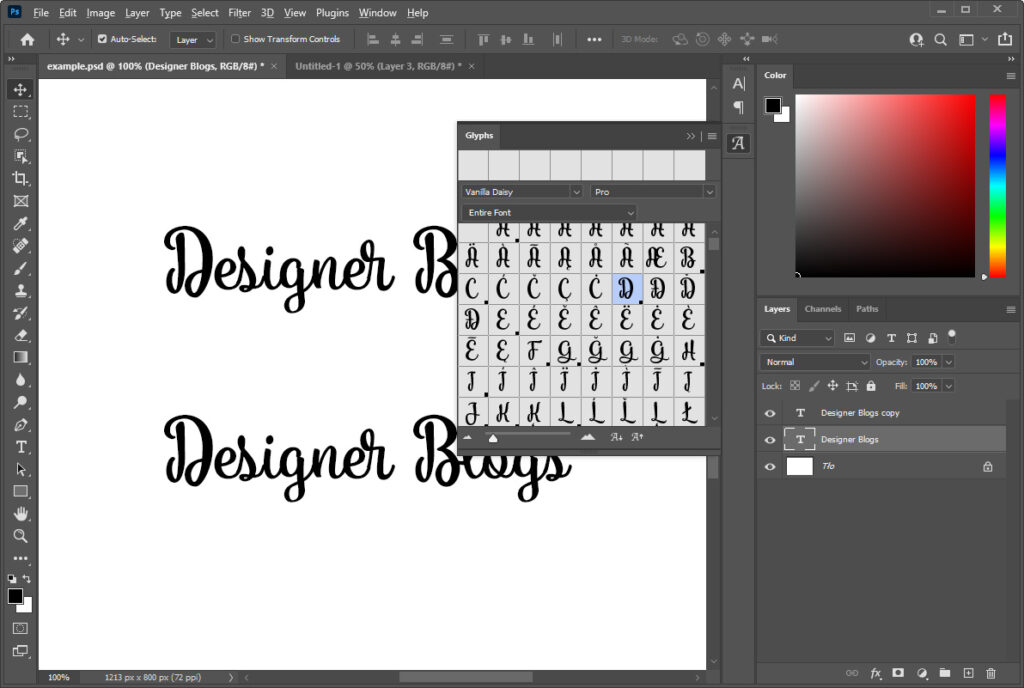
The easiest way of finding options for the letter you are looking for is by clicking that letter in the Glyph tab or highlighting it in your text. After that, you can switch the Glyphs tab to show alternatives for your selected letter instead of an entire font.

#3 Swap in the Fancy Glyph
Double-click your preferred alternate or swash character in the panel. Photoshop will instantly replace the default character on your canvas.
(In modern versions of Photoshop, simply highlighting a letter will also trigger a mini pop-up menu directly underneath it displaying quick alternates).
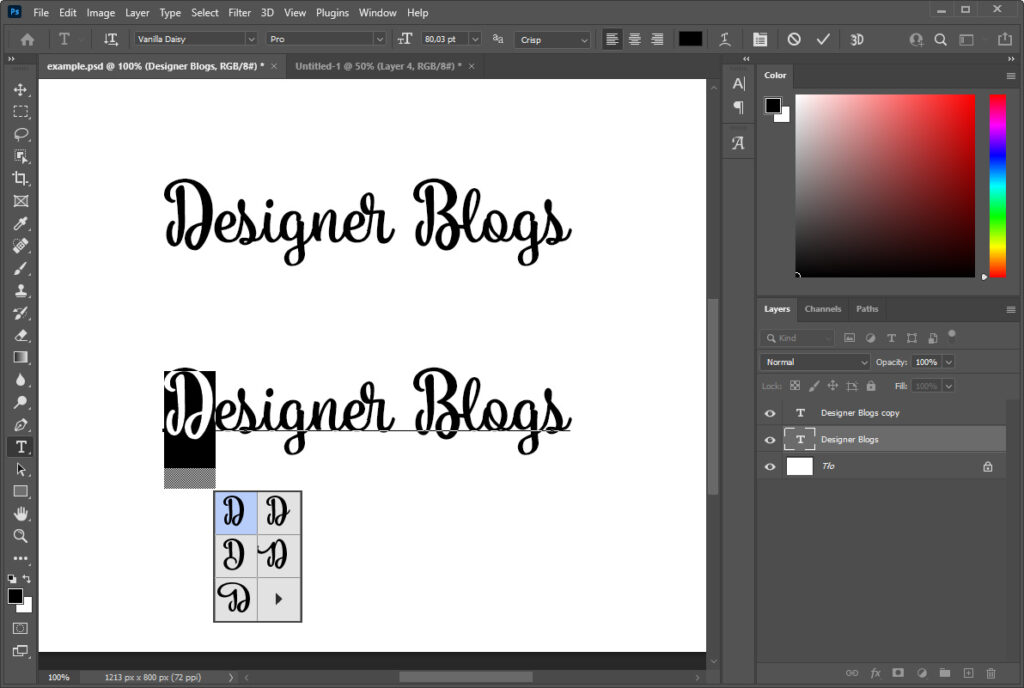
That’s all! Now you can enhance your text using the full potential of your fonts.
Pro Tips for Better Script Typography
The other great thing about the Glyphs panel is that you can scroll through the glyphs panel to see every character available within a particular font and sometimes find some hidden nuggets that are a bonus to that font.
- Don’t over-swash: A flourish looks best on the first letter of a word, the last letter of a line, or descending characters (like g, y, j). Adding swashes to every single letter quickly makes text illegible.
- Explore the full character map: Scroll through the entire Glyphs panel when you install a new font. Type designers often hide bonus elements like decorative catchwords, heart connectors, ornaments, and dingbats at the very bottom.
Using fancy calligraphy fonts has never been more fun!
P.S This post includes affiliate links so by clicking them you are supporting us. Thanks!