Unlock the Secret Formula: Generate Infinite Content Ideas Using WordPress and Claude Like a Pro

Start by reviewing competitor articles covering the same topic. Then, create an outline for the article containing: an introduction, a TL;DR with a table comparing the tools against various criteria, main sections (H2 headings), supporting subsections (H3 headings), and final thoughts.
Provide instructions on how to naturally highlight relevant services, products, or features of the agency if possible.”
Instantly, I received an outline showing how to cover the introduction and conclusion and what information to include in each subsection of the article.

Review the outline carefully and ask Claude to adjust anything before moving forward, such as reordering sections and trying out different subheadings.
From here, you can use the outline as a starting point and draft the article based on your knowledge and expertise.
Step 5: Ask Claude to add the article to WordPress.com
Once your article is ready, upload it as a PDF or markdown file to Claude, and tell Claude to add it to your WordPress website as a post.
This is the prompt I used to instruct Claude:
| “Save this article as a draft on my WordPress website. Add a category and include appropriate tags, write a meta description, suggest where I can link other existing posts and pages throughout the content, and add images from the media library.” |
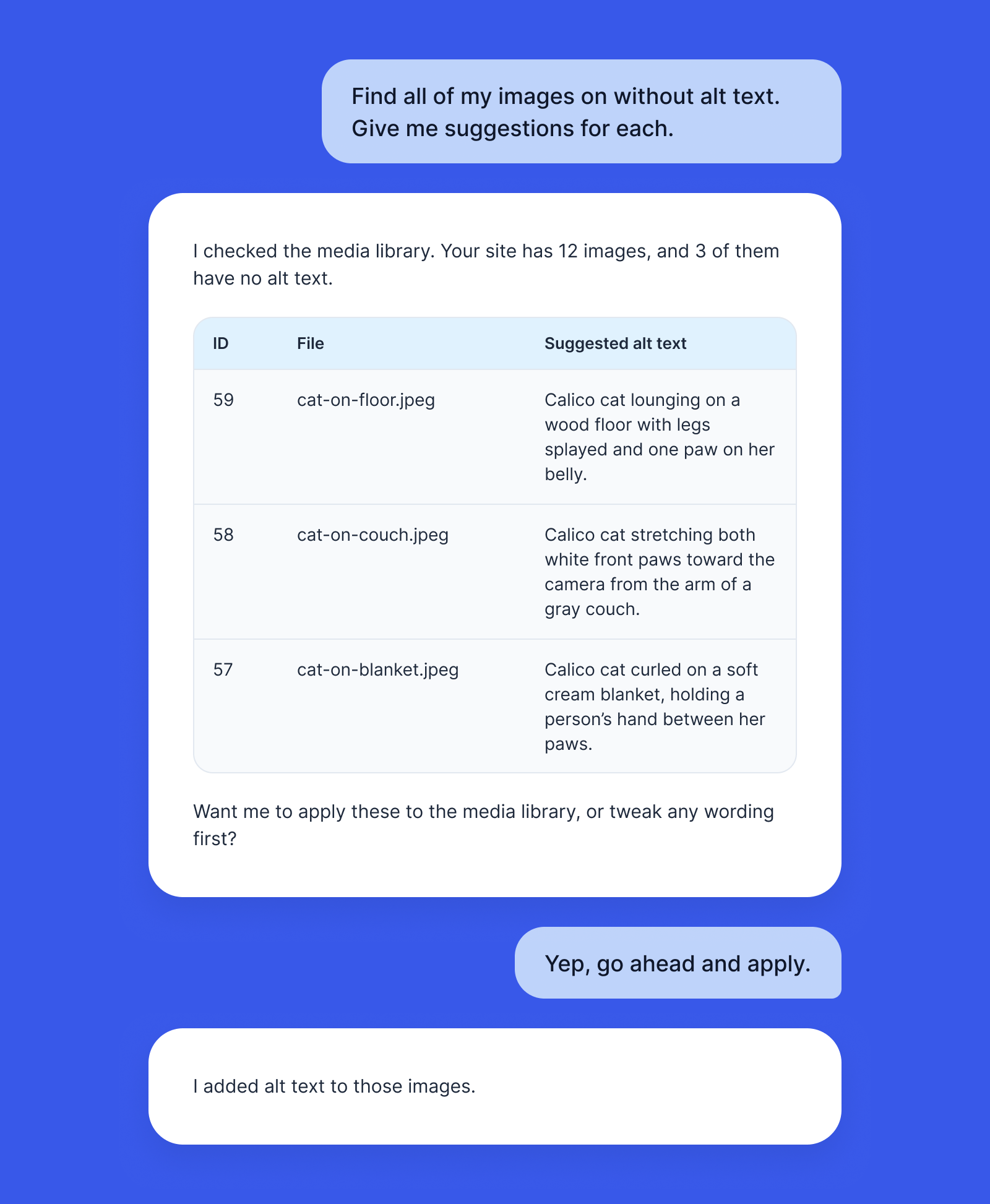
Claude seeks additional confirmation before adding the article to the website. Once you confirm, it creates the post, defines categories and tags, and adds the article to your site.

Claude also flags any tasks left undone, like adding the meta description manually.

Open the article on your website and check the categories, tags, images, and interlinks.
If you need to carry out quick edits to the text (like correcting grammatical mistakes and plugging logical holes), use WordPress’s native AI assistant.
Head to your WordPress account → Sites → Settings → AI tools → Enable AI assistant and toggle it on if you’re on a Business or Commerce plan (or if you built your site with our AI website builder).
Then, select the Sparkle option from the toolbar and click “Ask AI Assistant” to add a prompt or make edits like simplifying or summarizing your text.

That’s it. The article is now ready for publication.
Start finding content gaps with Claude
You now have a repeatable process for identifying content gaps with Claude as well as generating outlines, writing articles, and sending them to your WordPress website.
Connect your website once, and Claude gains access to your posts, pages, comments, and traffic data through secure access via OAuth 2.1.