Unlock Hidden Secrets: Effortlessly Export E-book Notes to Your Computer Like a Pro
The image below shows a screen capture of the first page of my novel after I touched a blank spot on the screen. I have drawn in a red arrow to point to the Notes icon in the top toolbar.
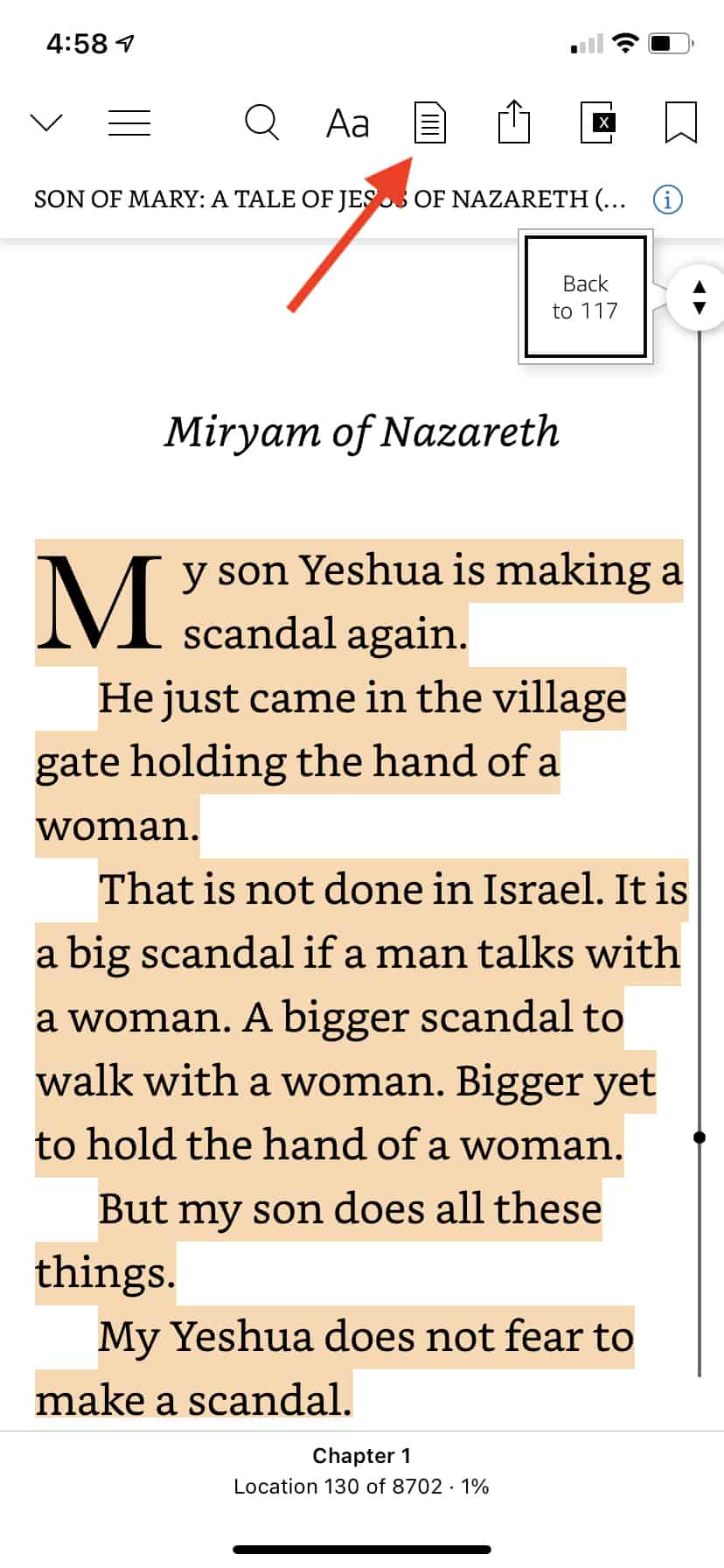

When you touch that Notes icon, the Notes Section of the app appears on the screen.
Step 3: Click the Share Icon in the Toolbar
On the iPhone Kindle app, each Note you’ve highlighted shows up with a small header that tells the location the Note came from. You can scroll through the Notes Section and see every snippet that you’ve highlighted all through the book.